How to Add a Flash Effect to a Photo You Already Took
You're adding three things: a bright frontal highlight on the subject, a background that falls off to dark, and grain plus a colour shift. An AI flash-effect app does all three automatically by relighting the photo; manual editing means stacking exposure, shadow, grain and white-balance adjustments.
The one-tap route
Upload the photo to Flash Effect, pick a style — Flash for the clean look, Distinctive for disposable, Rush Flash for a night snapshot — and it rebuilds the lighting in 20–40 seconds. It detects the subject, relights it, darkens the surroundings, and adds the finish. Our blog covers this too: how to add a flash effect to a photo.
The manual route
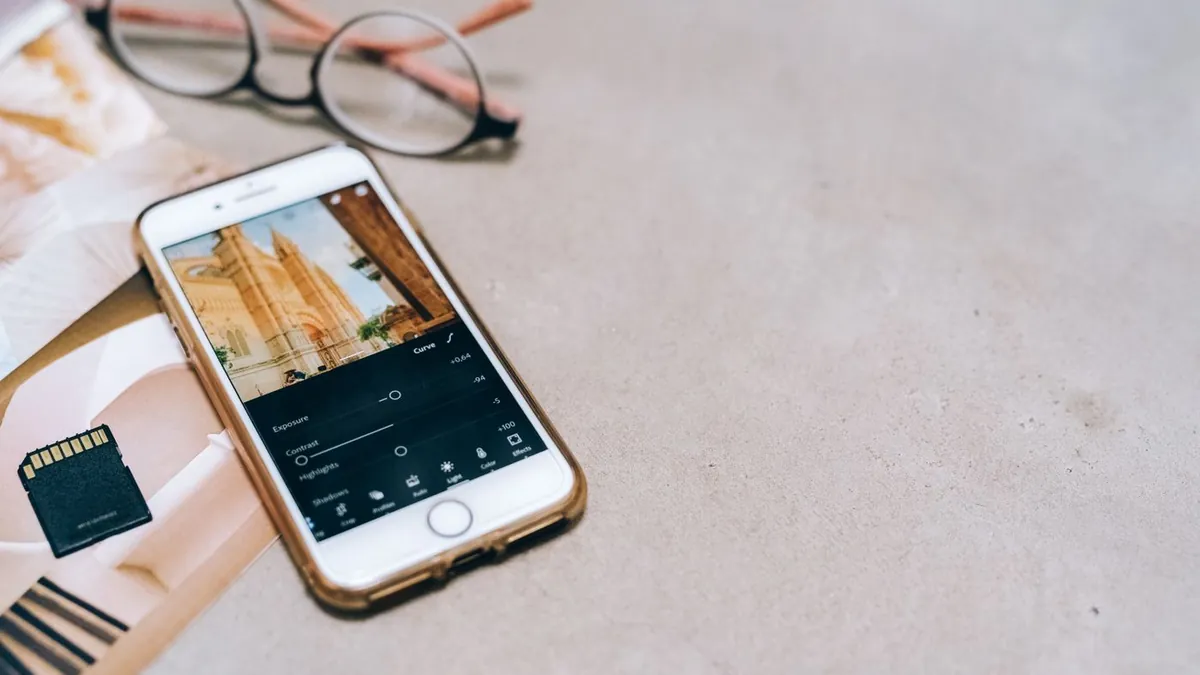
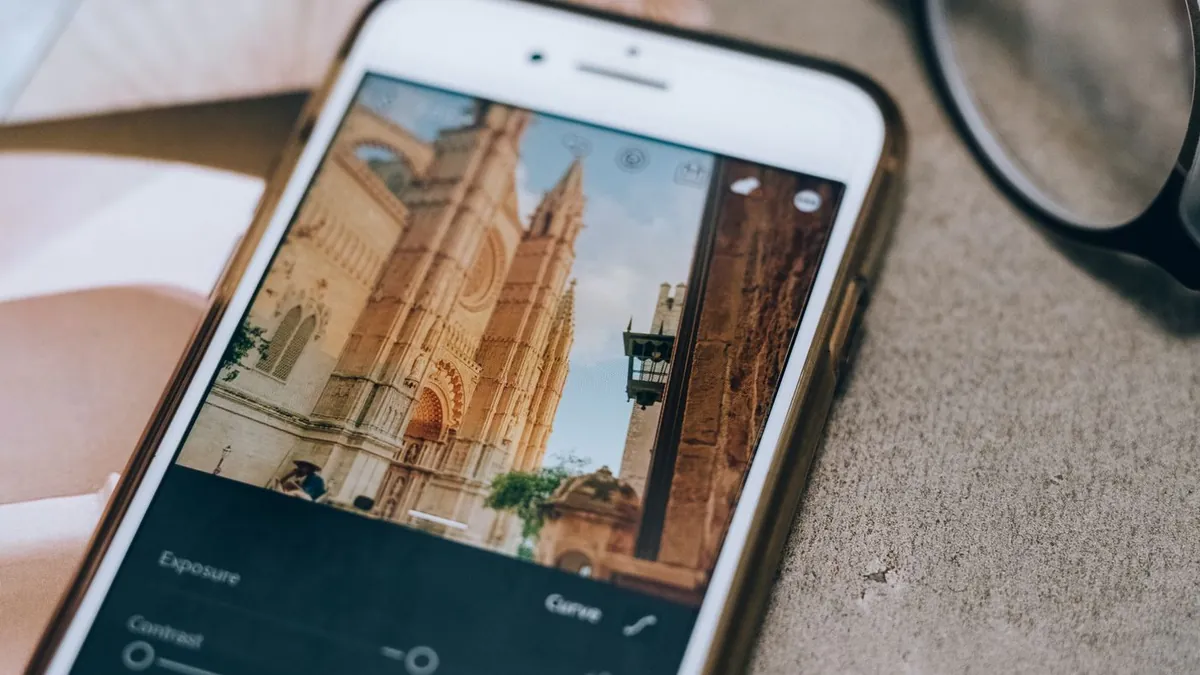
In any editor: raise exposure and contrast on the subject with a mask or brush, pull the background shadows toward black, shift white balance slightly cool, add 20–40% grain, and clip the brightest highlights. The falloff (making the background darken naturally toward the edges) is the hard part to do convincingly by hand.
What makes it look real vs. fake
The giveaways are a hard cut-out edge around the subject and a background that darkens too evenly. See why an AI flash photo looks fake.
Old photos work too
Since this is about relighting, not resolution, older photos restyle fine — see making an old photo look like flash.
Can I add flash to any photo?
Almost any — the subject needs to be reasonably clear and not already backlit or heavily shadowed. A front-lit or evenly-lit original gives the cleanest result.